
 Nederlands
 English
 Deutsch
 Italiano
Back to overview
Review flow after a repair: automatically collect more Google reviews
Ken Rutten
07/29/2026
Reading time: 7 minutes

A satisfied customer does not automatically leave a Google review. After collecting a repaired device, the customer usually gets on with their day. The problem has been solved, and writing a review quickly fades into the background.
That is why asking for a review at the counter alone is often not enough. You need a fixed review flow that follows up with every customer at the right moment. Not manually or only when someone remembers, but fully automatically.
An automated review flow could look like this:
Repair completed → wait two weeks → automatically send a review email.
You set up this flow once. Repender then makes sure every completed repair is followed up in the same way.
In this blog, you will learn how to set up this automated review flow step by step.

Why satisfied customers often do not leave a review
Most customers are happy to write a review. Still, it often does not happen. At the counter, they are busy paying, checking their device or trying to leave quickly. Later, they usually forget about it.
Manually emailing every customer afterwards is difficult to maintain. On busy days, it gets forgotten, and not every employee handles the follow-up in the same way.
As a result, you mainly miss reviews from customers who are satisfied but do not think about going to Google themselves.
Automate the follow-up after every repair to collect more Google reviews
A good review flow does not have to be complicated. Every completed repair automatically follows the same process:
- The repair is given the status Completed.
- Repender waits for a predefined period.
- The customer automatically receives a personal email containing your Google review link.
You no longer have to keep track of which customers have already received a request. Every customer receives the same professional follow-up.
A delay of two weeks is a logical example. By then, the customer has used the device again for a while and can review not only the contact in the store, but also the result of the repair.
In Repender, you can also choose to send the email immediately, after a number of hours, after one to seven days, or after two, three or four weeks.
What should you include in a good review email?
A review email does not have to be long. The clearer the request, the easier it is for the customer to take action.
Make sure the email includes at least the following:
- A personal greeting
- A short question asking whether everything is working as expected
- A clear request for a review
- A direct link to your Google review page
- The name of your store
Ask customers about their experience in an open way. Every customer should have the same opportunity to leave feedback.
Example of a review email
You could use the following text:
Subject: How is your repaired {{ repair.device }} working?
Hi {{ customer.first_name }},
Your repair of the {{ repair.device }} at {{ shop.name }} was completed a little while ago. We hope everything is still working properly and that you are happy with our service.
Would you like to share your experience with us? A short Google review helps other customers choose a reliable repair shop.
[PASTE YOUR GOOGLE REVIEW LINK HERE]
Is something not working as expected? Please contact us. We will be happy to help.
Kind regards,
{{ shop.name }}
In Repender, you do not have to manually enter details such as the customer’s first name, the device and the store name each time. You can use placeholders for this.
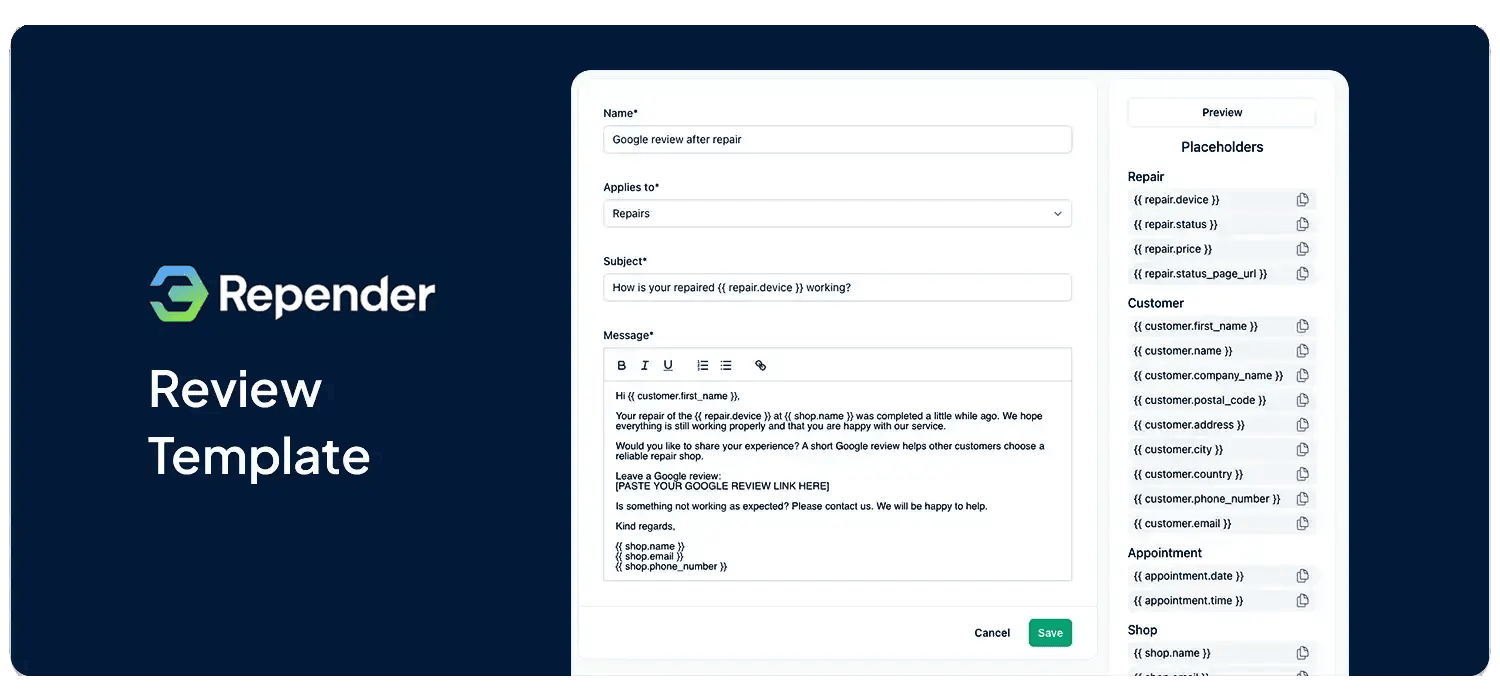
Step 1: create a review template in Repender
The first step is to create a fixed email template for your review request.
Go to:
Settings → Communication → Email
Then click New email template.
Complete the following fields:
- Name: give the template a recognizable name, such as “Google review after repair”.
- Applies to: select Repairs.
- Subject: enter the subject line of the email.
- Message: write the review email here and add your Google review link.
Next to the form, you will find the Placeholders section. These allow you to automatically add information from the repair and customer profile to the email.
The following placeholders are particularly useful for a review email:
- {{ customer.first_name }} for the customer’s first name
- {{ repair.device }} for the repaired device
- {{ shop.name }} for the name of the store
Click a placeholder to copy it and place it in the correct position in the message.
There is no separate field for a Google review link. Add the link directly to the Message field. Make the link clearly visible so the customer does not have to search for it.
Use the Preview button to check how the subject and message will look. This is a visual preview and does not send an actual test email.
Is everything correct? Click Save.
Please note: personalizing customer communication with your own email templates is available in the Plus and Pro plans.
Step 2: automate the review email
Now that the review template is ready, you can decide when Repender should send it automatically.
Go to:
Settings → Communication → Automations
Click New automation.
In Repender, the automation is configured as one continuous sentence:
When the Repair status changes to Completed, send Google review after repair via Email after 2 weeks.
Configure the following parts:
- After When the, select Repair.
- After status changes to, select Completed.
- After send, select the review template you created in the previous step.
- You do not need to change via Email. Email is the fixed sending channel.
- For the delay, select after 2 weeks.
Repender automatically shows only email templates that match the selected type. When you select Repair, you will only see templates intended for repairs.
Check that the Active switch is enabled and click Save.
From that moment on, you no longer have to send the review email manually. As soon as a repair receives the selected status and the configured delay has passed, Repender automatically carries out the follow-up.

View or cancel a scheduled review email
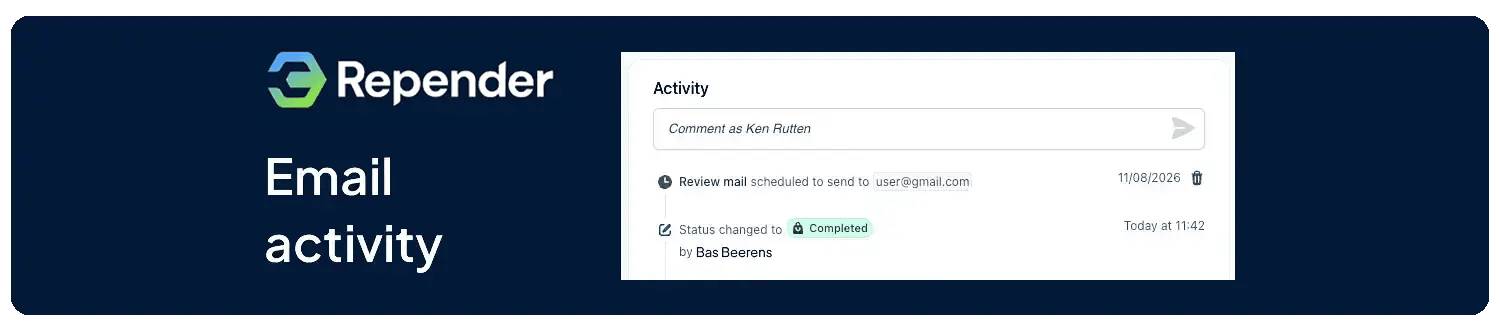
When an automated email has been scheduled, you can see it in the relevant repair or order.
Open the repair and look under Activity. There, you can see that the automated email has been scheduled and when it will be sent.
Do you want to prevent the email from being sent in a particular situation? You can cancel the scheduled automated email from the activity section.
This is useful, for example, if you have already contacted the customer personally or if you first want to resolve something related to the repair.
Automated emails do not have to feel impersonal
Automation does not mean that your communication has to feel distant. Use the customer’s first name, mention the repaired device where appropriate and sign off with the name of your store.
Also make it clear that customers can contact you if something is not working as expected. This makes the email not only a request for a review, but also an additional service moment.
Frequently asked questions
1. Can I send the review email immediately after the repair?
Yes. For the delay, you can select Immediately. You can also choose a number of hours, one to seven days, or two, three or four weeks.
2. Can I create a separate review flow for orders?
Yes. Create an email template that applies to Orders and select Order in the automation. An automation always applies to one type: either a repair or an order.
3. Can I use the automation for other emails?
Yes. Automations are not only intended for review requests. You can also use them to automatically keep customers informed during the repair or ordering process.
For example, you can send an email as soon as the repair status changes and the device is ready for collection. Select the appropriate status, link a suitable email template and decide whether the email should be sent immediately or after a delay.
Want to collect more Google reviews automatically?
With Repender, you create one personal review template and link it to the status Completed. Every customer is then automatically followed up at the right moment.
This helps you collect Google reviews more consistently, without you or your employees having to send an email manually after every repair.
Start a free trial and discover how Repender makes customer communication and automated follow-up part of your repair process.

Repender B.V.
Hercules 6, 5126RK Gilze
KVK: 94818932
Btw: NL866902648B01